
Quick Start
On your chart in two minutes.
Install SMC PRO Zone on MT5, then fix the four most common problems in one tap.
01 · Install
Six steps, one time.
- Get the fileDownload SMC PRO Zone from Get access with your Client ID.
- Open the data folderIn MT5, click File → Open Data Folder.
- Go to the indicators folderOpen MQL5 → Indicators.
- Paste the filePaste the SMC PRO Zone .ex5 file into the Indicators folder.
- RefreshBack in MT5, open the Navigator (Ctrl+N), right-click Indicators and choose Refresh.
- Drag it onto a chartFind SMC PRO Zone in the Navigator, drag it onto your chart and press OK.
Before you start: log in to MT5 with your Trading PRO live account on TradingPROInternational-Live or Live 2.
02 · Fix my problem
Something not working?
“Access Denied”The indicator loads but shows Access Denied.
A popup tells you whether the problem is the server or the balance. Both must pass.
- Server. Check the exact server name in MT5: TradingPROInternational-Live or TradingPROInternational-Live 2. A Trading PRO account on a differently named server does not pass.
- Balance. Check your account currency and balance: at least USD 50, USC 5,000 or IDR 800,000. It checks your balance, not equity, so open trades don't change it. Other account currencies are not accepted. This is your own trading balance, not a fee.
Fixed it? Remove the indicator from the chart and add it again.
No drawings on the chartThe indicator is on, but nothing shows.
- Let the history load. The indicator needs at least 200 candles on the chart, plus some extra history to warm up. Give MT5 a moment to load it.
- Check the feature is on. Open the indicator's Inputs and make sure the drawing you want is switched on.
- Check there is something to draw. A zone or label only appears once that pattern has formed in the loaded history.
Colours don't changeYou picked new colours, but the chart looks the same.
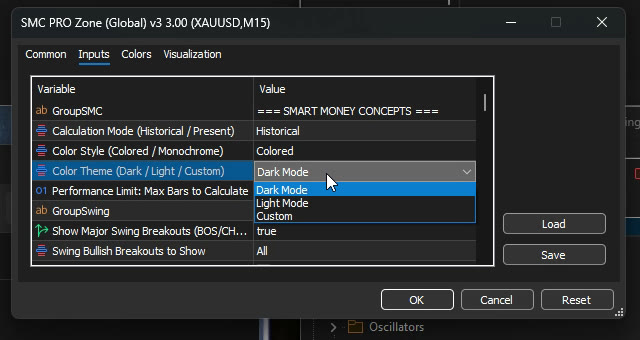
In Inputs, set Color Theme to Custom first. Dark Mode, Light Mode and the Monochrome style use their own colours and override yours.
An arrow disappearedAn arrow was there, then it was gone.
The arrow was on the open candle, the one still forming. While a candle is open, the Zone Shift trend can change, so an arrow can appear and then disappear before the close. That reversal did not hold.
Still stuck? Contact the partner who sent you the link, or your Trading PRO account manager.